Roam Research Docs · Help & user documentation
Formatting
markdown version · view in Roam Research
Bold
- Wrap your text in double asterisks
**like this** to make it bold.
- You can also press
cmd+b(or ctrl+b on PC).
- Try bolding the next word: Zettelkasten
- Gif
Highlight
- Add
^^double carets^^ on both sides to highlight.
- Try selecting the next sentence and pressing
cmd+h (ctrl+h on PC):
- "I want to stand out."

Italics
- Emphasize part of a sentence using
__double underscores__
- Or press
cmd+i (ctrl+i on PC)!

Strikethrough
Strike Cross things out using ~~double tildes~~.
- Use
cmd+y (win+y on PC) to strike out the next word: Evernote

- ℹ️ Remember, you don't have to remember all of this- just type
/ in any block to bring up the [slash commands](/ Commands). #.box
> Start a block with > to make a cool Blockquote like this one!
- Try making one below:
- "Put a
> and then a space before the quote in this block"

- Callouts
- > !TIP Helpful tip — try using callouts for emphasis!
Combine callouts with bold, *italic*, and code formatting in both the title and body.
- ---
- Create separators like the one above by entering only three hyphens (
-) into any block.
- Try it out below by finishing the block with another
-
- --

Links
- The way to alias a link is by writing
[Roam](https://roamresearch.com). You can link to blocks, pages or external websites like we've done here: blocks, [pages](Page References), external websites.
- You can select [block ref](Block References), [page ref](Page References), or external link text, press
cmd+k (macOS) / ctrl+k (PC) and then type the alias where your cursor is placed to make an aliased link
- Try it out below:
- Make the page reference below a link with the alias
birthday
- Make the block reference below a link with the alias
Bardia's favourite site
-
- You can select any text you want to use as an alias and then press
cmd+k (macOS) / ctrl+k (PC) and then enter the [block ref](Block References), [page ref](Page References), or external link to make an aliased link
- Try it out below:
- Add an external link to your favourite website to the text below
- My favourite site

- You can hover over any aliased link to view a preview of the underlying data in a tooltip
- Hover over the following to see how the tooltip works:
- Block
- [Page](March 3rd, 2021)
- Link

- Images
- You can embed an image by placing a link inside an alias with a
! in front like this:

Headings
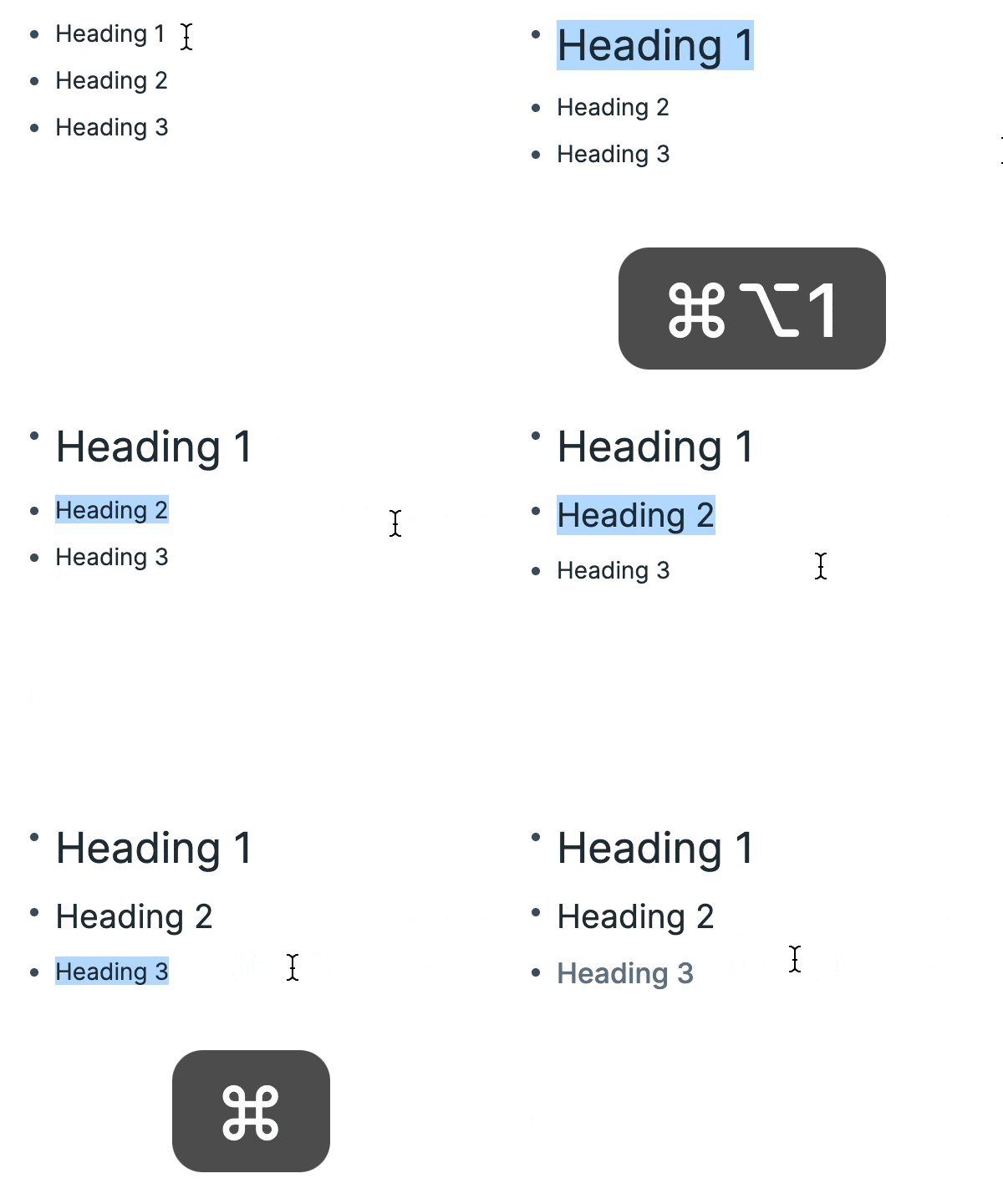
- You can make a header by using the Markdown formatting by typing
#, ##, and ### at the start of a line for H1, H2, and H3 respectively
- You can also make headings with the keyboard shortcuts below
- Key Commands::
cmd+opt+1 (macOS) / ctrl+opt+1 (PC)
cmd+opt+2 (macOS) / ctrl+opt+2 (PC)
cmd+opt+3 (macOS) / ctrl+opt+3 (PC)
Alignment
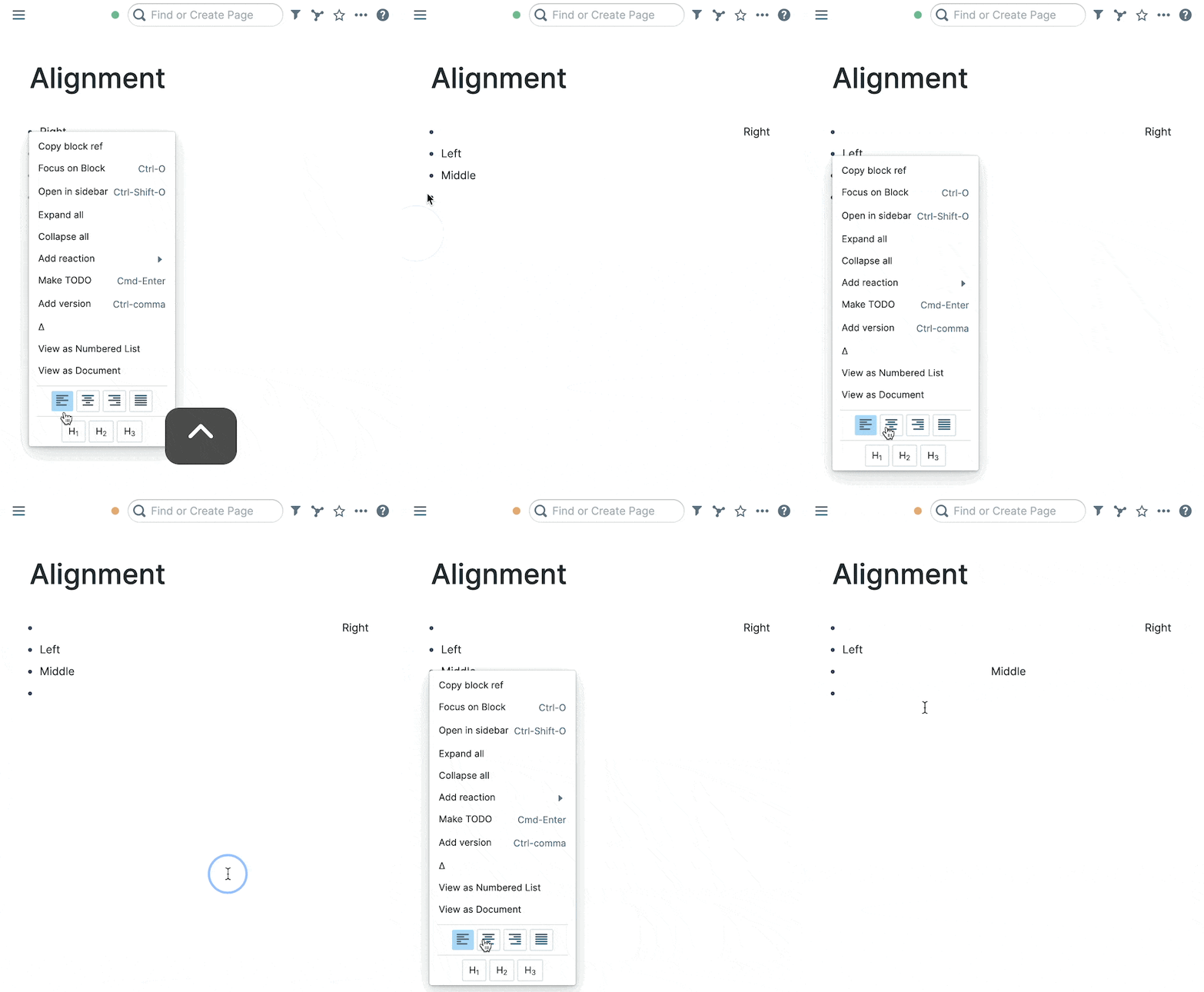
- You can left-, center-, and right-align your text as well as justify it, like below:
KaTeX
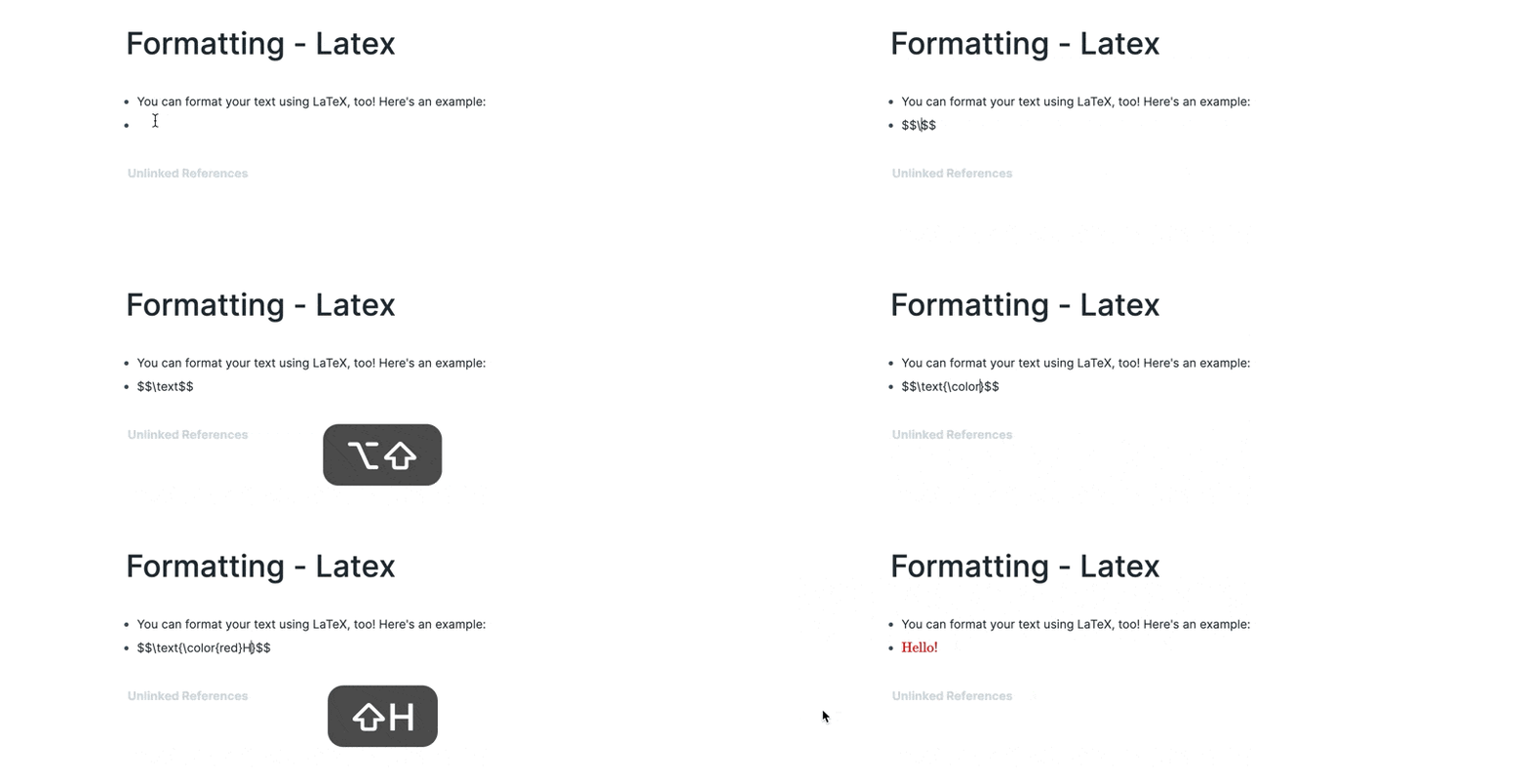
- Write down your equations inside Roam with $$KaTeX$$ by wrapping the text with
$$ on both sides
- KaTeX docs
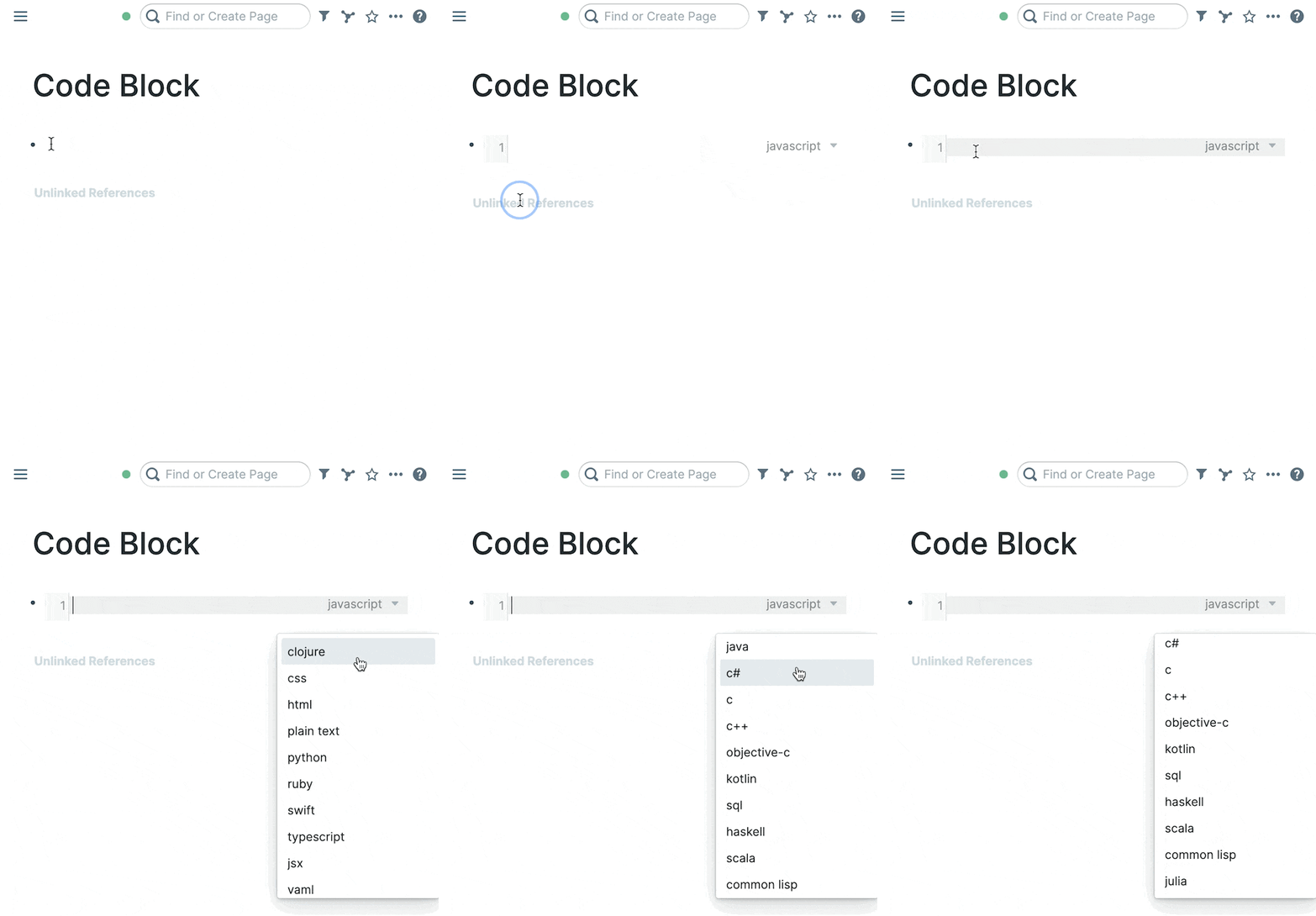
- You can make code blocks like in the GIF below with syntax highlighting for most popular languages
Children View Types
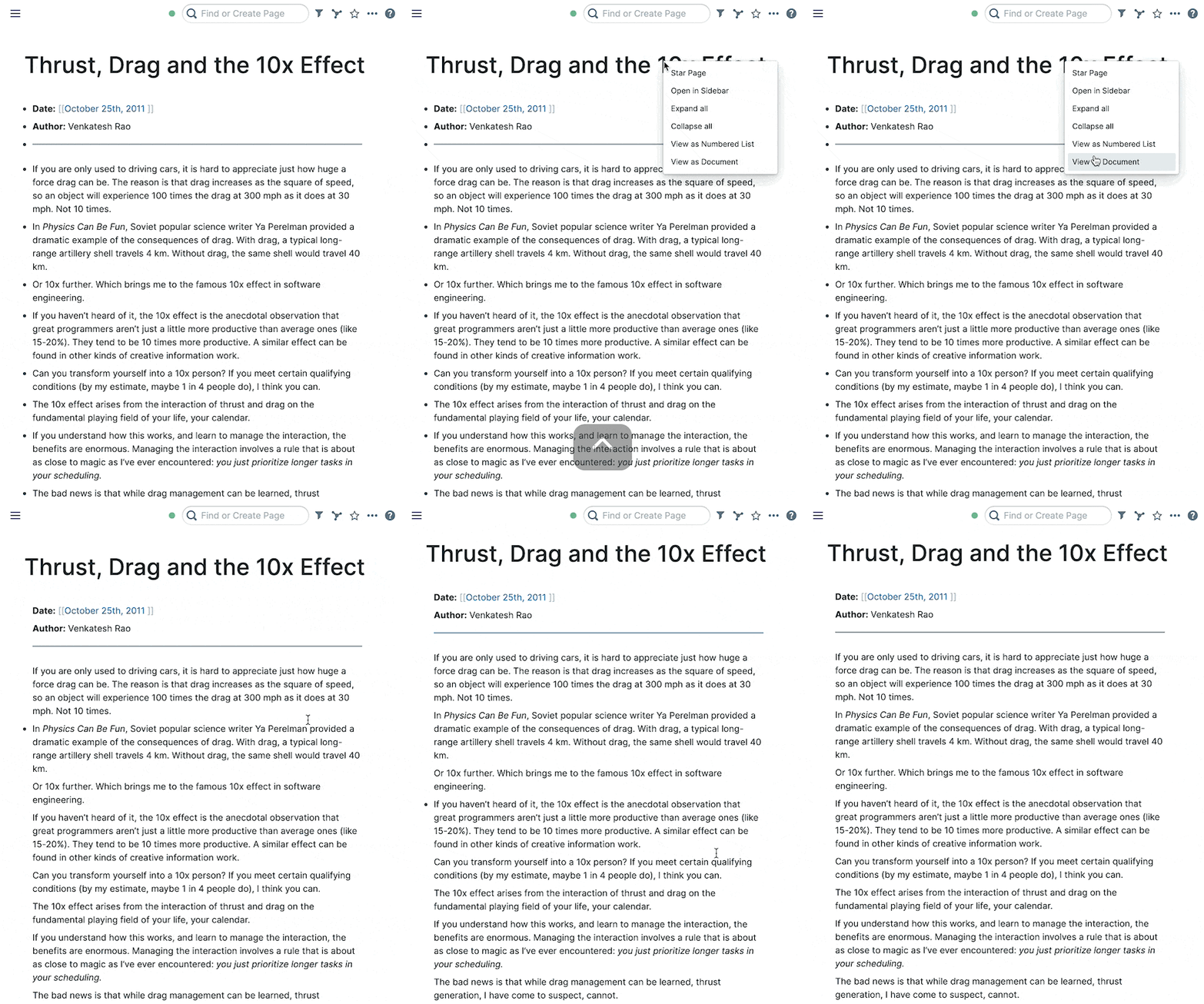
- View as Document
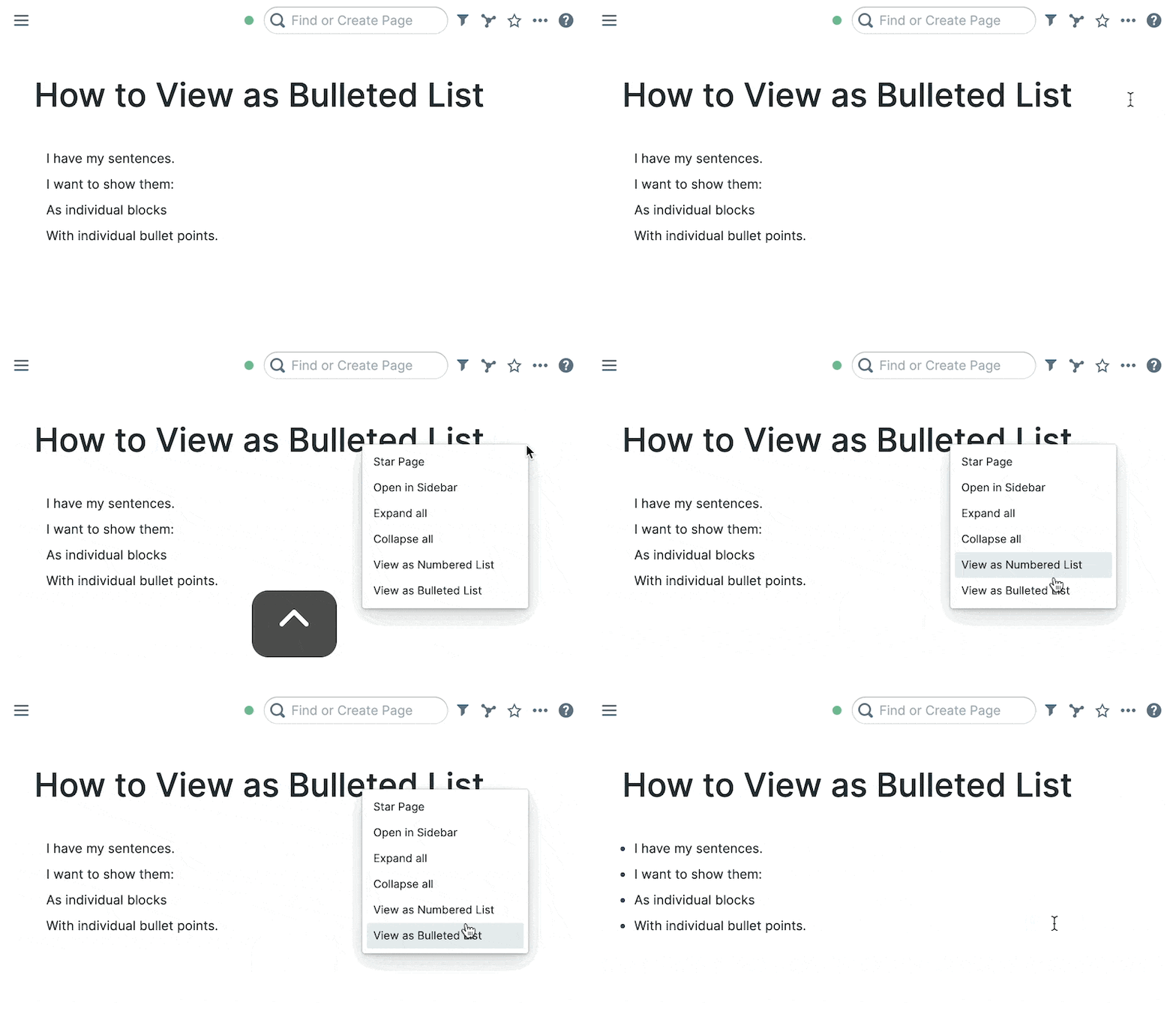
- View as Bulleted List
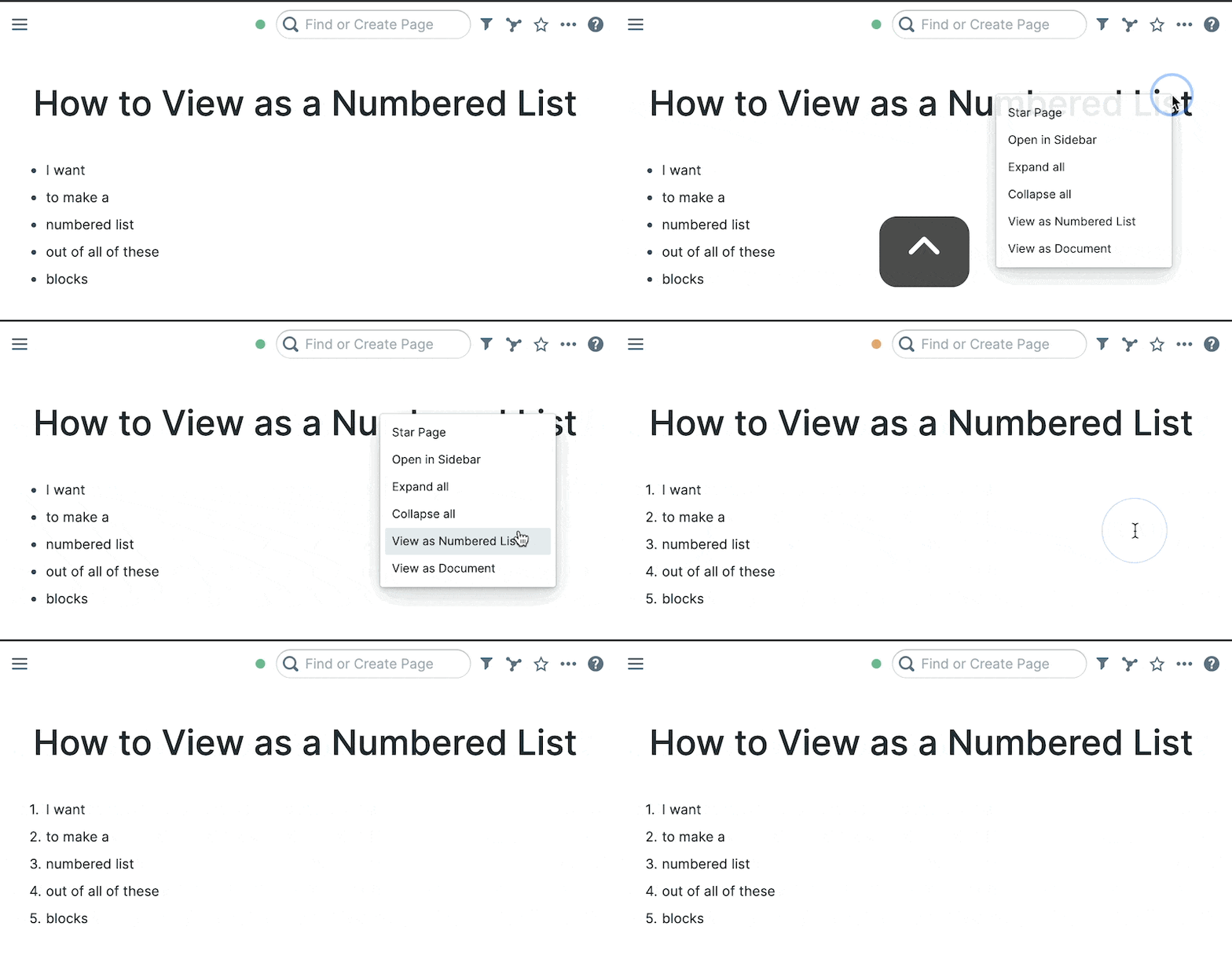
- View as Numbered List
Sort blocks
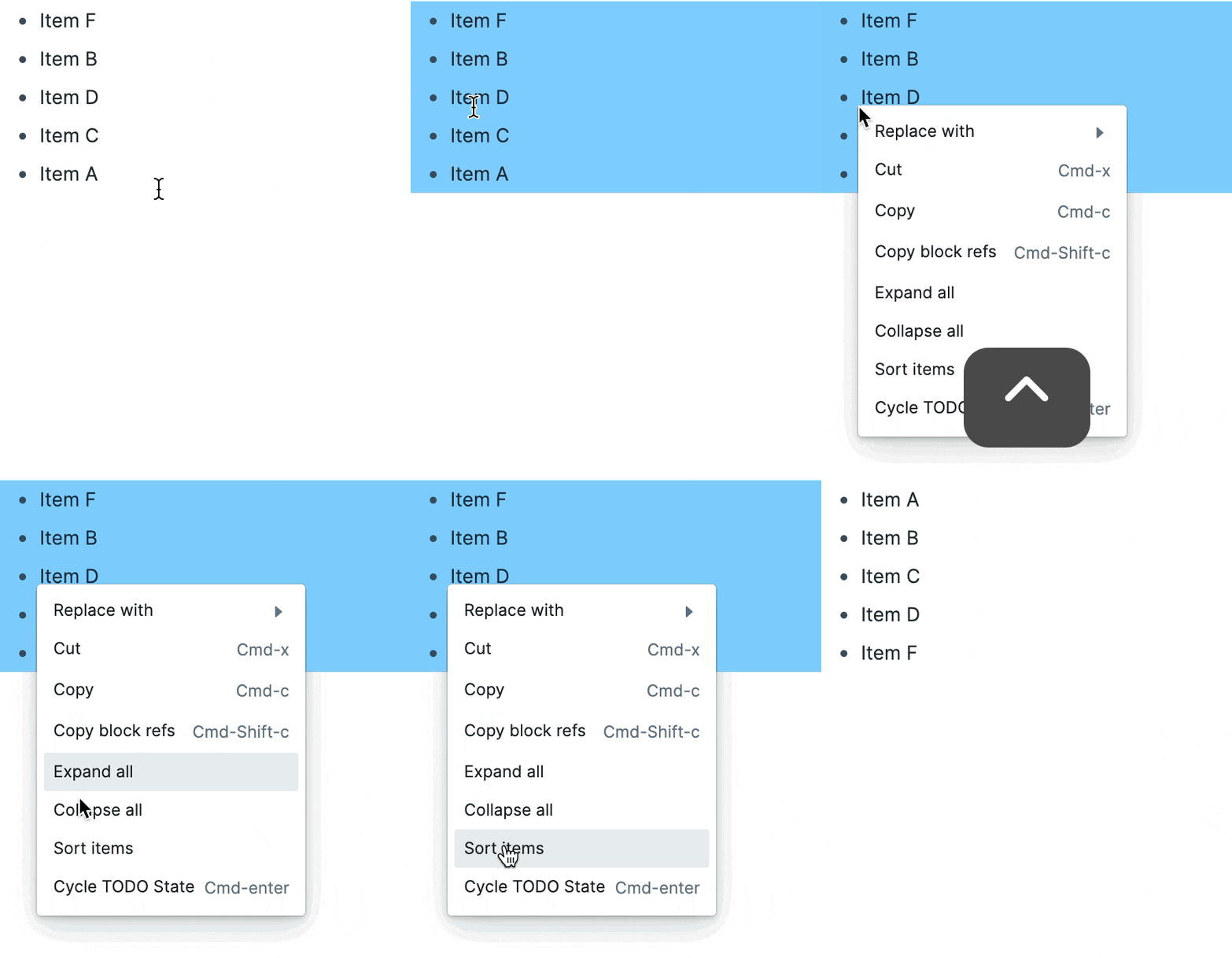
- You can sort your blocks alphabetically as shown below:
- Sort these below:
- Alphabetically
- Blocks
- Sort
- These