Roam Research Docs · Help & user documentation
Roam Reader
markdown version · view in Roam Research
- Roam Reader is a Chrome extension for reading on the web with Roam beside you: highlight, tag, and comment on an article, and your notes land in your graph.
- The article stays in its original layout. Most reader apps strip the page down; Roam Reader leaves it intact and puts your notes in a sidebar next to it.
- It also keeps reading lists, so articles you mean to read have somewhere to go.
- There's an in-depth video tutorial if you'd rather watch this page than read it.
- {{video: https://www.youtube.com/watch?v=stJ7SGo6J9w}}
Setting it up
- Install Roam Reader from the Chrome Web Store and pin it to your address bar.
- On any article, click the astrolabe icon and sign in with your Roam account.
- Click it once more to choose which graph your reading lists and notes go to.
Saving articles for later
- Click the astrolabe on an article, adjust the title and metadata, and add tags if you want them.
- Save it to Inbox, or straight to Shortlist or Archive.
- Reading lists can be filtered, and filters can be saved as views that sync to your graph. There's a query builder for more involved filters.
Reading and taking notes
- Click the astrolabe and choose Take Notes. A sidebar opens beside the page, and your notes go under today's date.
- To highlight, select text in the article and click the highlighter icon that appears. You can pick a color.
- Highlights are added to the sidebar automatically, in the order they appear in the article.
- Indent the empty bullet beneath your latest highlight, and the highlights that follow will nest under it. An outline forms while you read.
- The tag and comment icons on a highlight add a tag or a nested comment, with the formatting handled for you.
How it lands in your graph
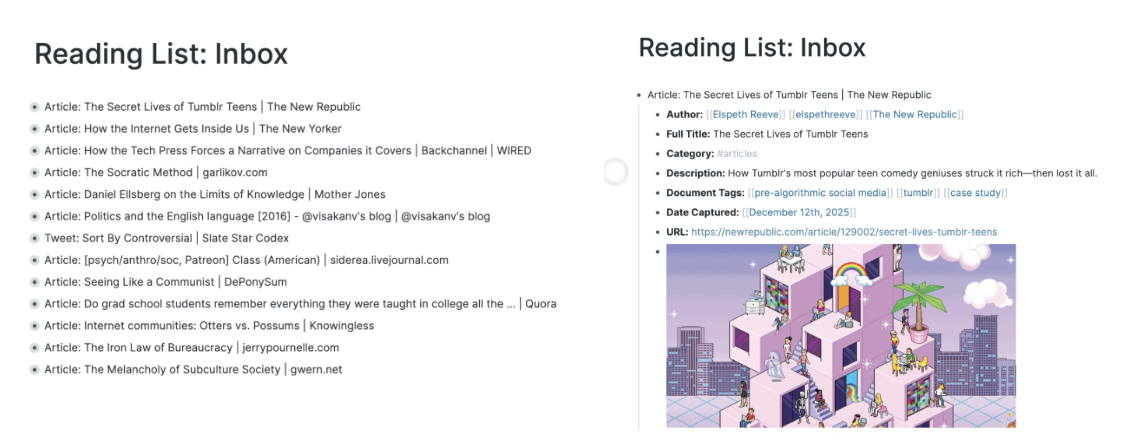
- Saved articles first appear as single blocks on a Reading List: Inbox page, with their metadata nested underneath, so your graph doesn't fill up with pages you haven't read yet.
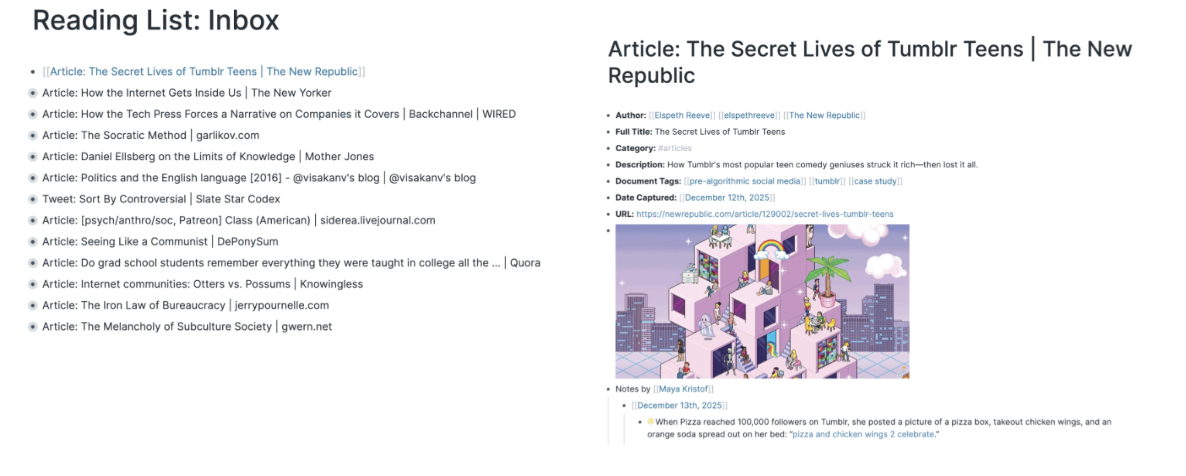
- An article expands into a page of its own only when you start taking notes on it.
- The entry template and the title format are configurable in Roam Reader's settings. A namespace-based title keeps reading material grouped as it grows.