Roam Research Docs · Help & user documentation
Semantic search (Experimental)
markdown version · view in Roam Research
What is semantic search?
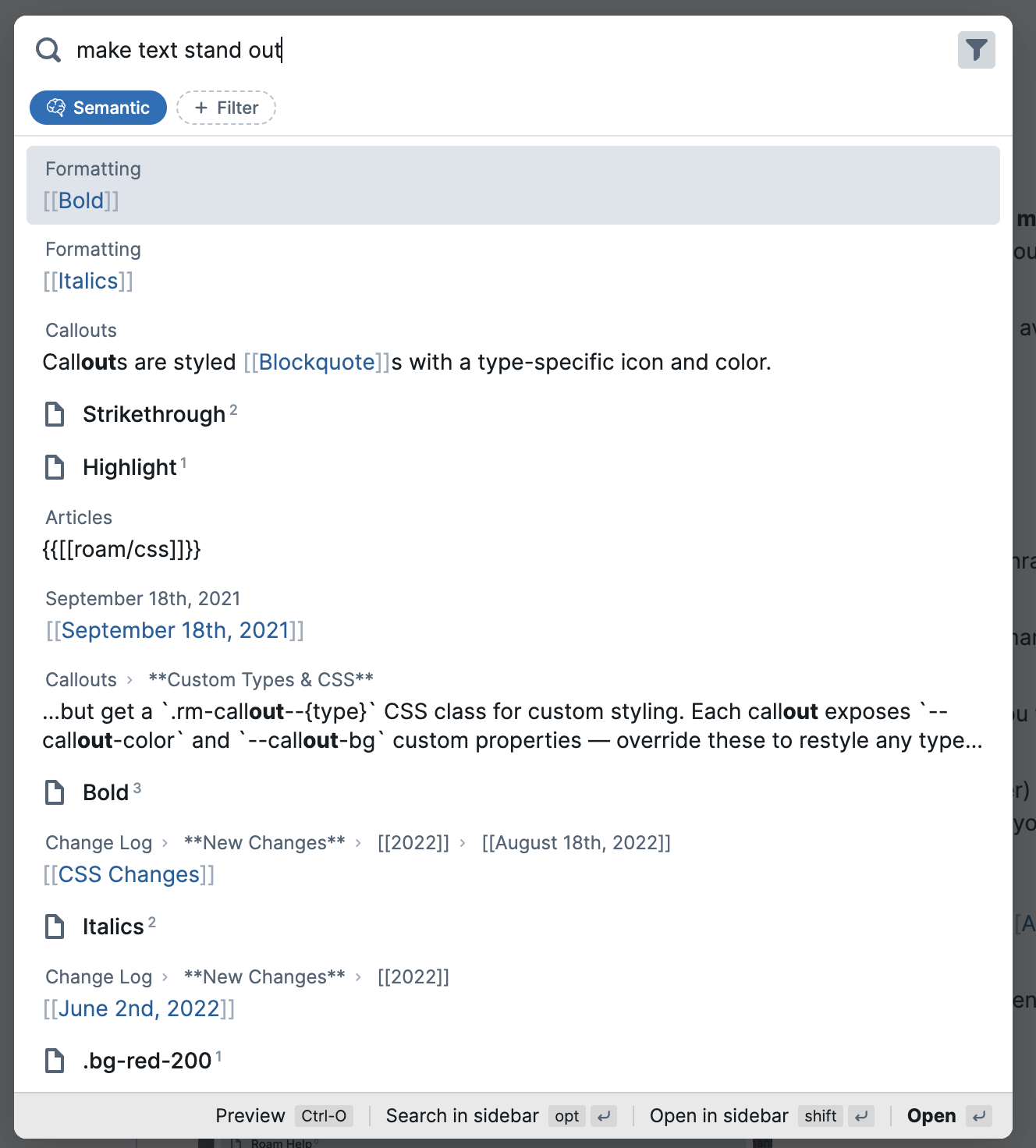
- Roam's regular search matches the words you type. Semantic search matches meaning — it can find your notes about insomnia when you search for "trouble sleeping", even though they don't share a single word.
- It runs as an optional mode inside Roam's search. Once an admin sets it up, it's available to everyone on the graph.
How it works
- Once enabled, Roam indexes your graph in the background:
- Each page is split into small chunks of your outline, with the page title and parent blocks included so each chunk carries its context.
- Each chunk — and every page title — is turned into an embedding: a numeric fingerprint of its meaning, computed by the embedding model you choose during setup.
- The fingerprints are stored in a search index that Roam keeps up to date as you write.
- The index keeps itself current. When you edit a page, only the parts that changed are re-embedded. The settings panel shows a live status: "Indexing… 128 pages remaining", then "Up to date".
- When you search in semantic mode, your query gets the same fingerprint treatment. Roam finds the chunks and page titles closest in meaning, blends them with the normal keyword results, and shows you the best of both.
- The embedding model can run wherever you choose: Roam's default (Voyage AI), or — via the Custom option — a hosted API you have a key for or a local server on your own machine.
Why you might want it
- You remember the idea, not the words. Notes from years ago rarely use the phrasing you'd reach for today.
- Your vocabulary drifts. Old notes say one thing, new notes say another — semantic search bridges terms that mean the same thing.
- Resurfacing. Related notes you'd forgotten about show up next to the thing you were actually looking for.
- Better AI assistance. AI assistants connected to your graph (through Roam's MCP integration) get a semantic search tool too, so they can find relevant context by meaning when answering your questions.
How to use it
- First set it up, then click into the search bar and click the button at its right edge (tooltip: "Open advanced search") to open Advanced Search
- Click the filter icon, enable the Semantic chip, then type your query.
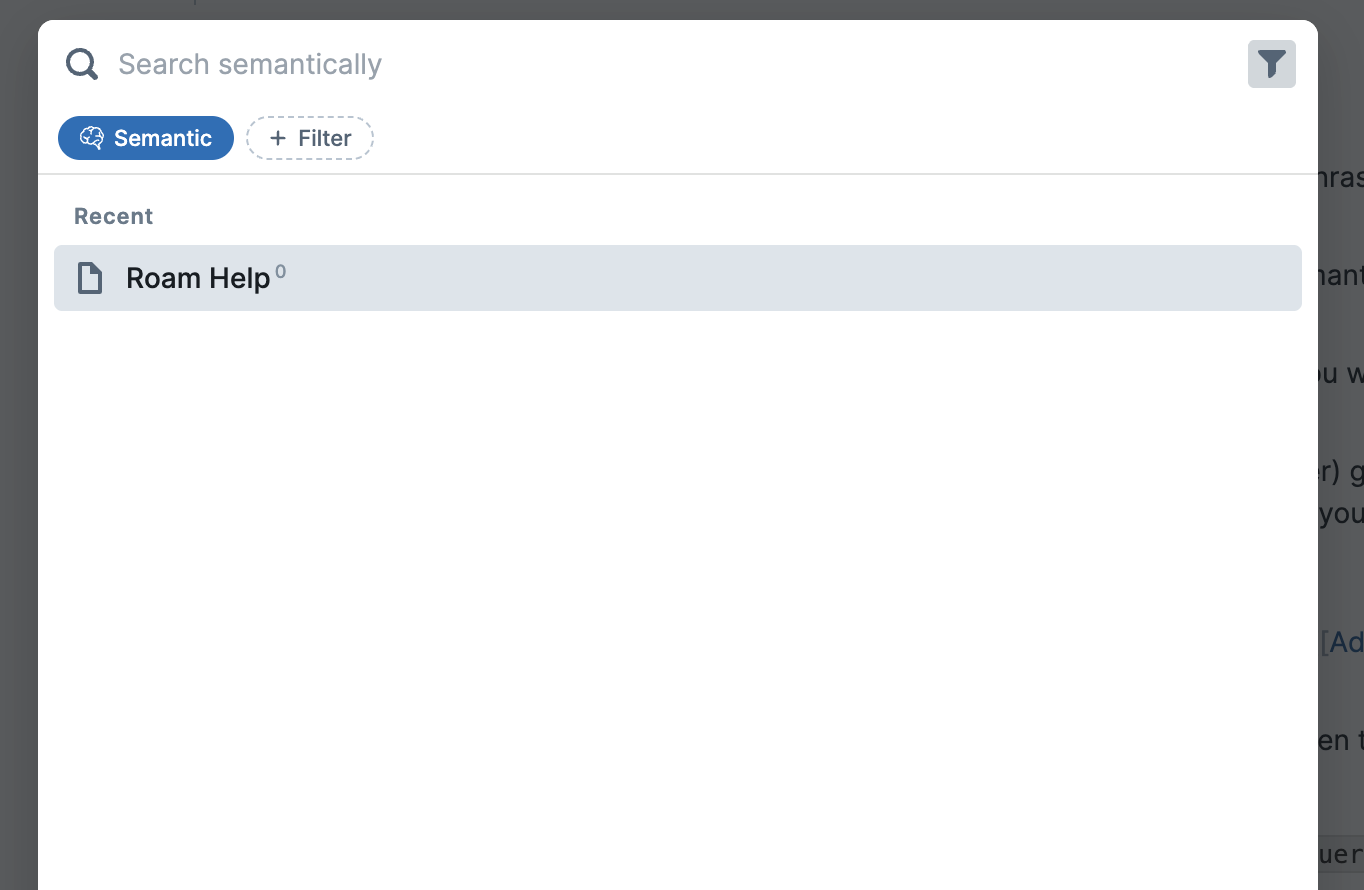
- The chip stays on for your later searches until you turn it off (it resets when you reload Roam).
- Semantic mode is also available in the sidebar search and in inline
{{search}} components — look for the same Semantic chip.
- Semantic results can be combined with search filters like daily notes or edit time.
Setting it up
- You need to be an admin of the graph.
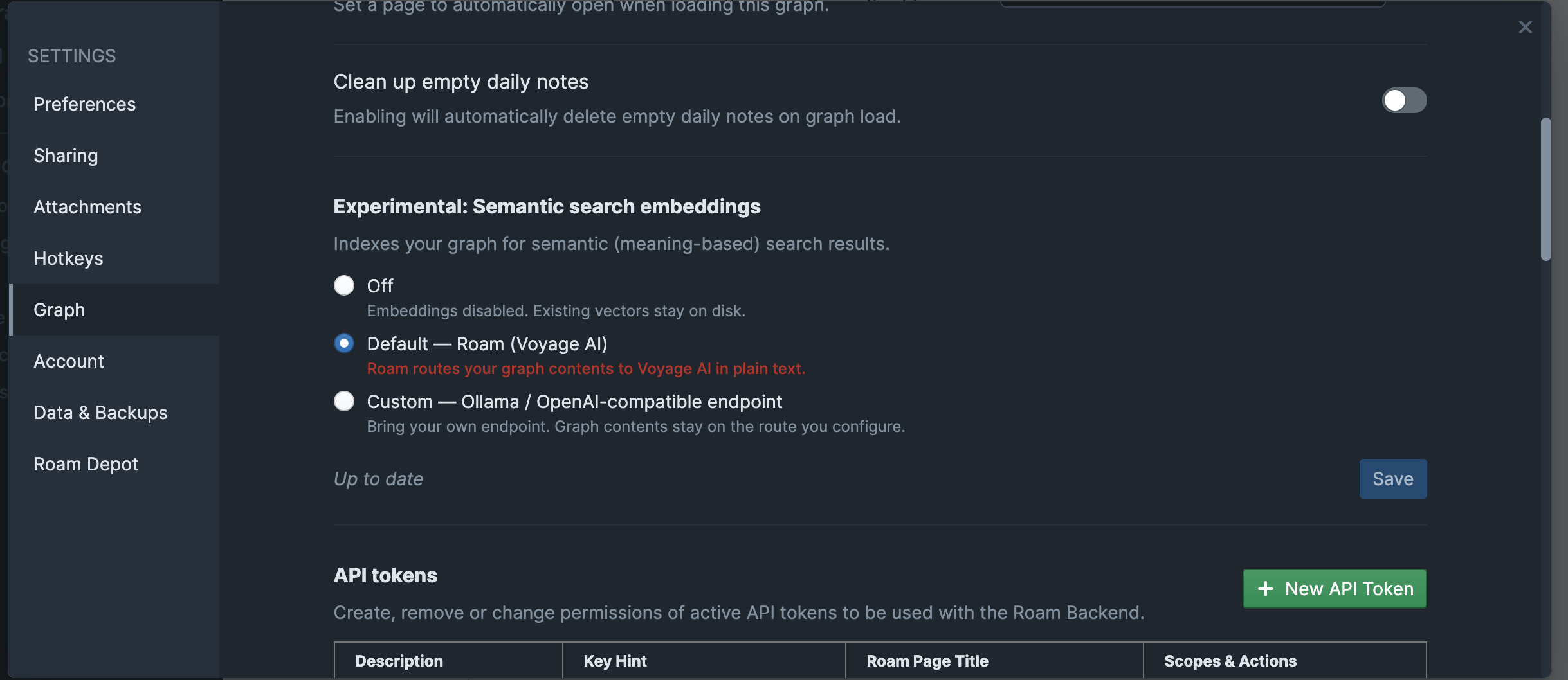
- Open Settings → Graph → Experimental: Semantic search.
- The setting is a three-way choice — Off, Default, or Custom. Picking either provider enables semantic search for everyone on this graph.
Option 1 — Default: Roam (Voyage AI)
- The easy zero-setup option — available when the graph has an admin with an active paid subscription.
- Roam computes embeddings using Voyage AI: select Default — Roam (Voyage AI) and click Save.
- What happens to your data
- Your graph's text is sent in plain text through Roam's servers to Voyage AI, used to compute embeddings, and not retained — Voyage doesn't store your content or train on it (see their privacy policy).
- Separately from Voyage, Roam's own servers may hold a cached copy for up to 24 hours so unchanged text doesn't have to be re-sent.
- If your graph is encrypted, note that embedding still requires the unencrypted text.
- After saving, the status line counts down ("Indexing… N pages remaining") and flips to "Up to date" when your whole graph is searchable.
Option 2 — Custom: bring your own endpoint
- For full control over where your text goes, select Custom — Ollama / OpenAI-compatible endpoint.
- Your graph contents are sent only to the endpoint you configure — a hosted API you have a key for, or a local server on your own machine (Ollama, LM Studio). This is also the only option for offline graphs — the Default option runs through Roam's servers, which offline graphs never talk to.
- Setting up for a team? With a
localhost endpoint, every graph member needs that same server on their own machine — see A note on local endpoints and collaborators
- The form fields:
- Endpoint URL — any OpenAI-compatible
/embeddings endpoint.
- Model — the embedding model name your endpoint expects.
- API key — only if your endpoint needs one. Keys are stored on this device only and never synced — collaborators enter their own key on their own device.
- Dimensions — optional. Leave blank to use the model's native vector size (must be 1024 or smaller). If your model lets you choose, 512 is a good balance of quality and speed.
- Rerank URL — optional. Reranking is a second pass where a more accurate (but slower) model re-sorts the top results before you see them. Point this at a Cohere-style
/rerank endpoint, for example https://api.cohere.com/v2/rerank. Leave blank to skip and use default ranking.
- Rerank model — the reranking model name your endpoint expects, for example
rerank-v3.5 for Cohere.
- Rerank API key — only if your rerank endpoint needs one. Stored on this device only, like the embedding key.
- Clicking Save first tests your endpoint with a live embedding — any problem shows up right there — and then indexing starts.
- Switching to a different model later discards the index and rebuilds it under the new model.
- Turning embeddings Off keeps the index on disk, so re-enabling doesn't start from scratch.
- Custom setup — a remote API
- Works with any embeddings API that speaks the OpenAI format: enter its
/embeddings URL, the model name, and your API key.
- Pick an embedding model that produces vectors of 1024 dimensions or fewer, or one that lets you choose the size (set Dimensions to 512 in that case).
- Requests to non-local endpoints are routed through Roam's CORS proxy — browsers can't call most APIs directly.
- Custom setup — Ollama (local and free)
- The embedding model runs on your machine — no third-party service is involved.
- Step 1: Install Ollama and download an embedding model
- Install Ollama.
- In a terminal, run:
ollama pull nomic-embed-text
- Step 2: Allow Roam to talk to Ollama
- Ollama only answers requests from origins it trusts, so without this step Roam's test fails with "Embedding test failed — Failed to fetch".
- Mac: run this command in Terminal:
launchctl setenv OLLAMA_ORIGINS "https://roamresearch.com"
- Then quit Ollama from the menu bar icon and open it again — Ollama only reads this setting when it starts.
- If the error comes back after you reboot your computer, run the command and restart Ollama once more.
- Windows: add an environment variable
OLLAMA_ORIGINS with the value https://roamresearch.com (Settings → search "environment variables").
- Then quit and reopen Ollama.
- Step 3: Fill in Roam's settings form
- Endpoint URL:
http://localhost:11434/v1/embeddings
- Model:
nomic-embed-text
- API key and Dimensions: leave blank
- Click Save.
- If the test fails with "model not found", the model isn't downloaded yet — run
ollama pull nomic-embed-text again.
- Reranking with Ollama: Ollama doesn't offer a rerank endpoint, so leave the rerank fields blank — semantic search works well without them. If you want reranking, use a hosted service like Cohere, or run a local reranker — see Custom setup — a local reranker (llama.cpp)
- Custom setup — LM Studio (local and free)
- Step 1: Install LM Studio and download an embedding model
- Install LM Studio.
- In the model catalog, search for and download
nomic-embed-text.
- Step 2: Start the local server
- Open the Developer tab and start the server.
- In the server settings, turn Enable CORS on — without it Roam's requests are blocked, for the same reason as with Ollama.
- Step 3: Fill in Roam's settings form
- Endpoint URL:
http://localhost:1234/v1/embeddings
- Model: the model's identifier exactly as LM Studio shows it (e.g.
text-embedding-nomic-embed-text-v1.5)
- API key and Dimensions: leave blank
- Click Save.
- Reranking with LM Studio: LM Studio doesn't offer a rerank endpoint, so leave the rerank fields blank — semantic search works well without them. If you want reranking, use a hosted service like Cohere, or run a local reranker — see Custom setup — a local reranker (llama.cpp)
- Custom setup — a local reranker (llama.cpp)
- Ollama and LM Studio don't serve reranking models, but you can add fully local reranking alongside either of them with llama.cpp's built-in server.
- Step 1: Install llama.cpp
- Step 2: Start the reranking server
- Run:
llama-server -hf gpustack/bge-reranker-v2-m3-GGUF:Q8_0 --rerank --port 8012 -c 8192 -b 8192 -ub 8192
- The first run downloads the model (about 600 MB) before it starts serving.
- The three flags at the end raise the size of block it can handle to the model's maximum (8,192 tokens) — without them, even modestly long blocks fail the rerank pass with a 500 error.
- Step 3: Fill in the rerank fields in Roam's settings form
- Rerank URL:
http://localhost:8012/v1/rerank
- Rerank model:
bge-reranker-v2-m3
- Rerank API key: leave blank
- Click Save.
- No permissions step this time — unlike Ollama, llama.cpp's server accepts requests from any app out of the box.
- The reranker is only called at search time. If it isn't running when you search, semantic search still works — Roam just skips the rerank pass. You'll need to start
llama-server again after a reboot.
- A known limitation: if a search turns up a block longer than the model's 8,192-token limit, the rerank pass fails for that search with a 500 error in the console. This is harmless — Roam falls back to its normal ordering for that search — but you may occasionally spot the error if you have very long blocks in your graph.
- A note on local endpoints and collaborators
- The endpoint configuration is shared with the whole graph, but each member's device builds its own index. If your endpoint is
localhost, every member needs that same server running on their own machine with the same model. A remote API avoids this — though each member must save the API key on their own device — and the Voyage default needs no per-device setup at all.