Roam Research Docs · Help & user documentation
Advanced Block Reference Search
markdown version · view in Roam Research
- A search that works the way your outline does: drill down toward a block level by level, then drop a
((block reference)) to it right where you're writing.
- It shines when you know roughly where a block lives (which page, under which heading) but not its exact words.
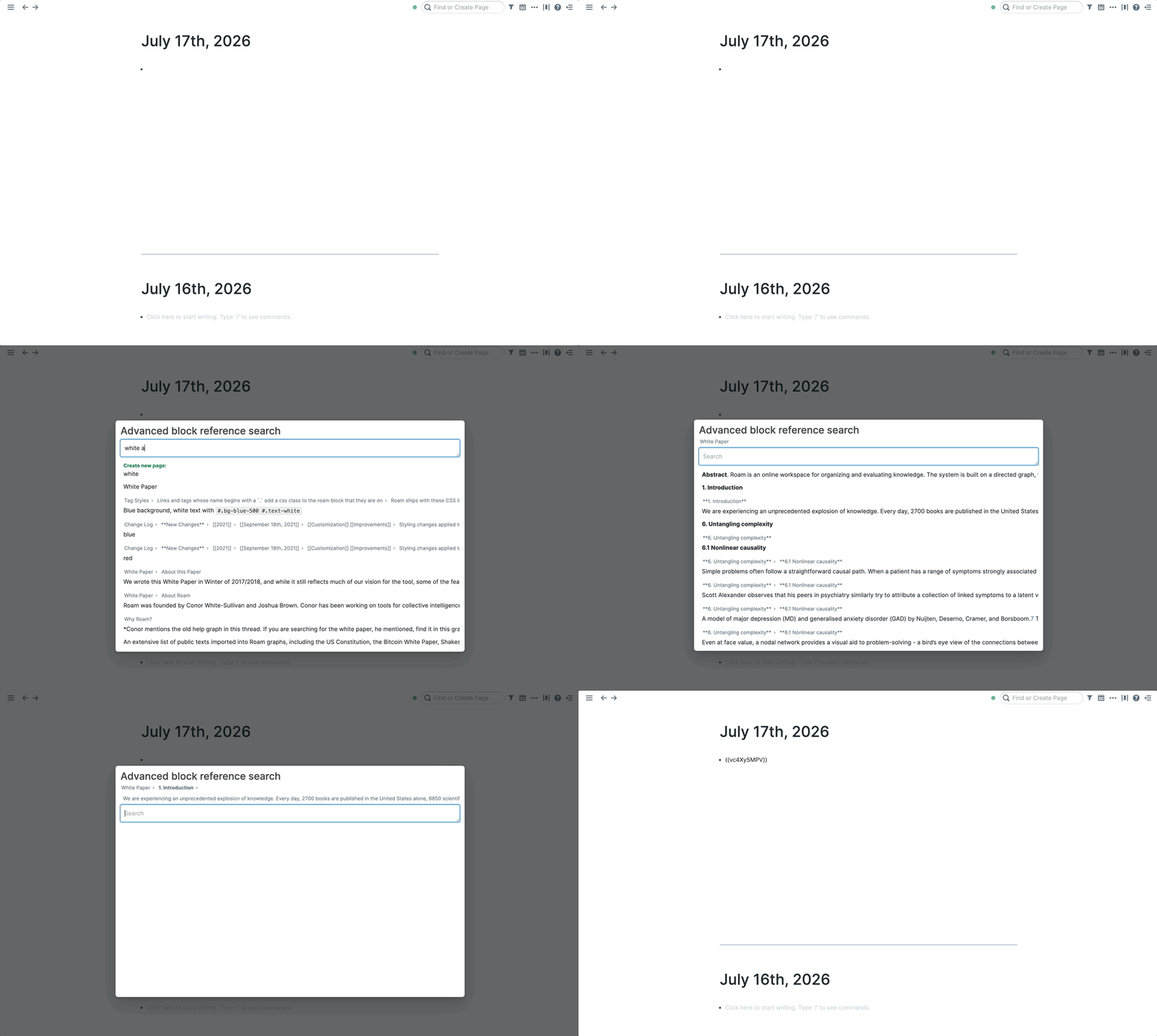
How to use it
- While writing in a block, press
Ctrl-Shift-9, or run Advanced block reference search from the Command Palette.
- Type to search, and press
Enter or Tab to step into the highlighted result. Now you're searching inside just that part of your graph.
- Keep stepping in until you've reached the block you want.
- Then, with the search box empty, press
Enter. The block reference is inserted where your cursor was.
- To back out a level, press
Backspace on an empty search box, or Shift-Tab.
Creating as you go
- You're not limited to blocks that already exist.
- If no page matches what you've typed, the last result offers Create new page:. Once you're inside a path, there's always a Create new block: option carrying your text.
- Select either one and it's created right where you've drilled to (a new block lands at the top of the block you're in), and you step into it like any other result.
- That means you can park a thought on another page without breaking flow: drill to where it belongs, type it, create it, and press
Enter. The new block exists there, and a reference to it lands where you were writing.
Tips
- The path you've drilled through so far is shown as a breadcrumb above the search box. It doubles as a map of where you are.
- You can drive it entirely with arrow keys:
→ at the end of your text steps in, ← at the start steps out, ↑/↓ move through results.