Roam Research Docs · Help & user documentation
Advanced Search
markdown version · view in Roam Research
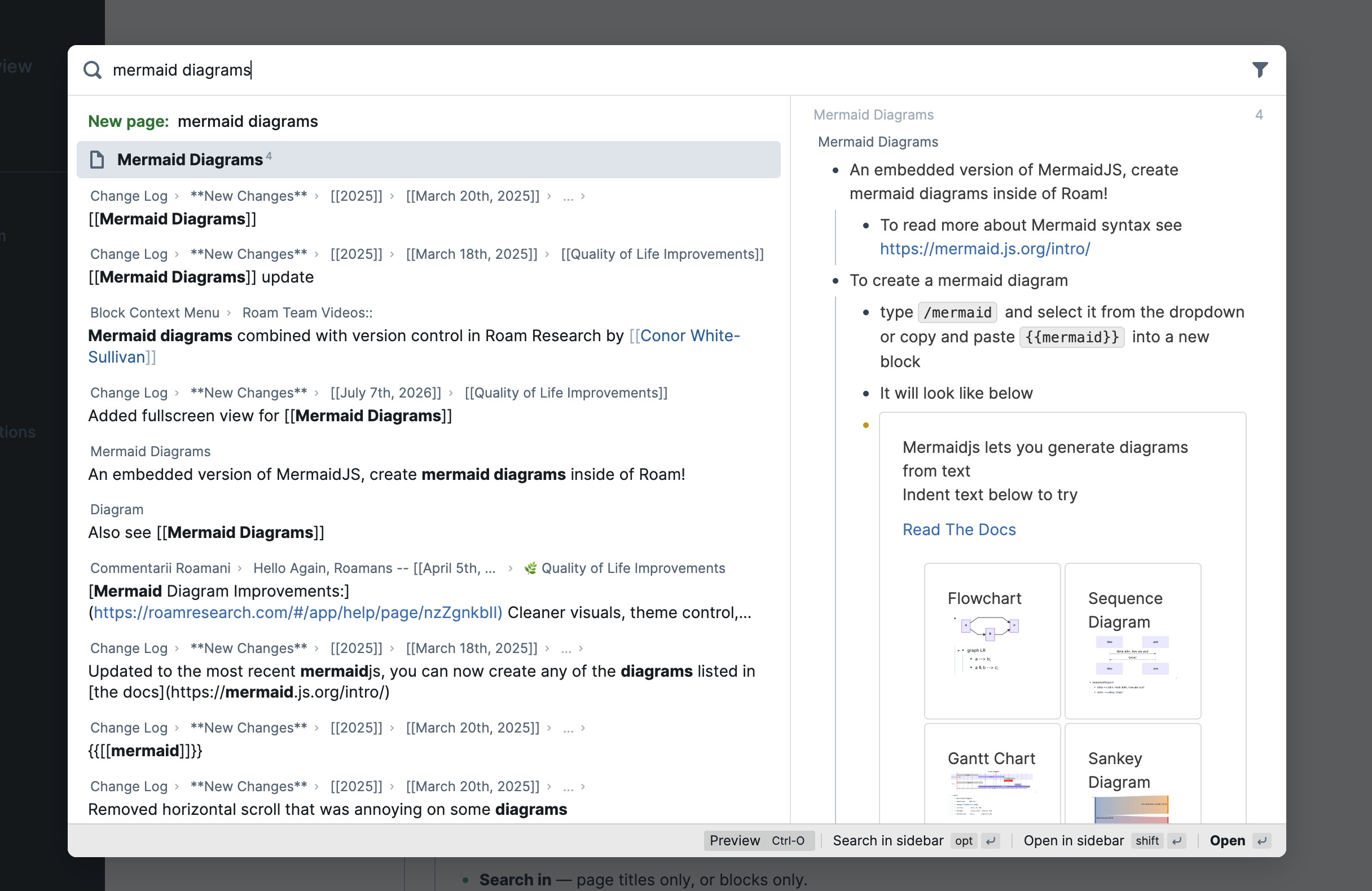
- Advanced Search is Roam's full search view: a bigger version of the search bar, with a results list, a preview pane, and filters (if Better search (Experimental) is turned on).
- Use it when the quick dropdown isn't enough: skimming lots of results, previewing before you jump, or narrowing a search down.
How to open it
- Click into the search bar (or press
Cmd-u / Ctrl-u), then click the Open advanced search button at the right edge of the input.
- Anything you've already typed carries over.
- Or open the Command Palette (
Cmd-p / Ctrl-p) and search for Open advanced search.
- You can also set your own hotkey for it in Settings → Hotkeys.
Working with results
- With an empty search box, you'll see your recent items.
- Results show reference counts and the path to each block, with your search terms highlighted.
Enter or click opens a result; Shift-Enter or shift-click opens it in the right sidebar.
- Toggle the preview pane with
Ctrl-o or the Preview button in the footer. It shows the selected result without leaving your search.
- If nothing matches the exact title you typed, the top row offers New page: to create it.
- Click + Filter to narrow a search:
- Daily notes: only daily notes, or exclude them.
- Search in: page titles only, or blocks only.
- Date: edited today, in the last 7 or 30 days, or in a custom date range.
- Filters apply to keyword searches when Better search (Experimental) is on, and always apply in semantic mode.
- Semantic: when Semantic search is enabled for your graph, the Semantic chip switches to meaning-based search. Toggle it with
Cmd-s / Ctrl-s.
Keep a search open in the sidebar
- Press
Alt-Enter (or shift-click the Open advanced search button in the search bar) to open your search as a window in the right sidebar.
- The sidebar search stays put while you work, and your filters and semantic mode carry over with it.