Roam Research Docs · Help & user documentation
File Manager
markdown version · view in Roam Research
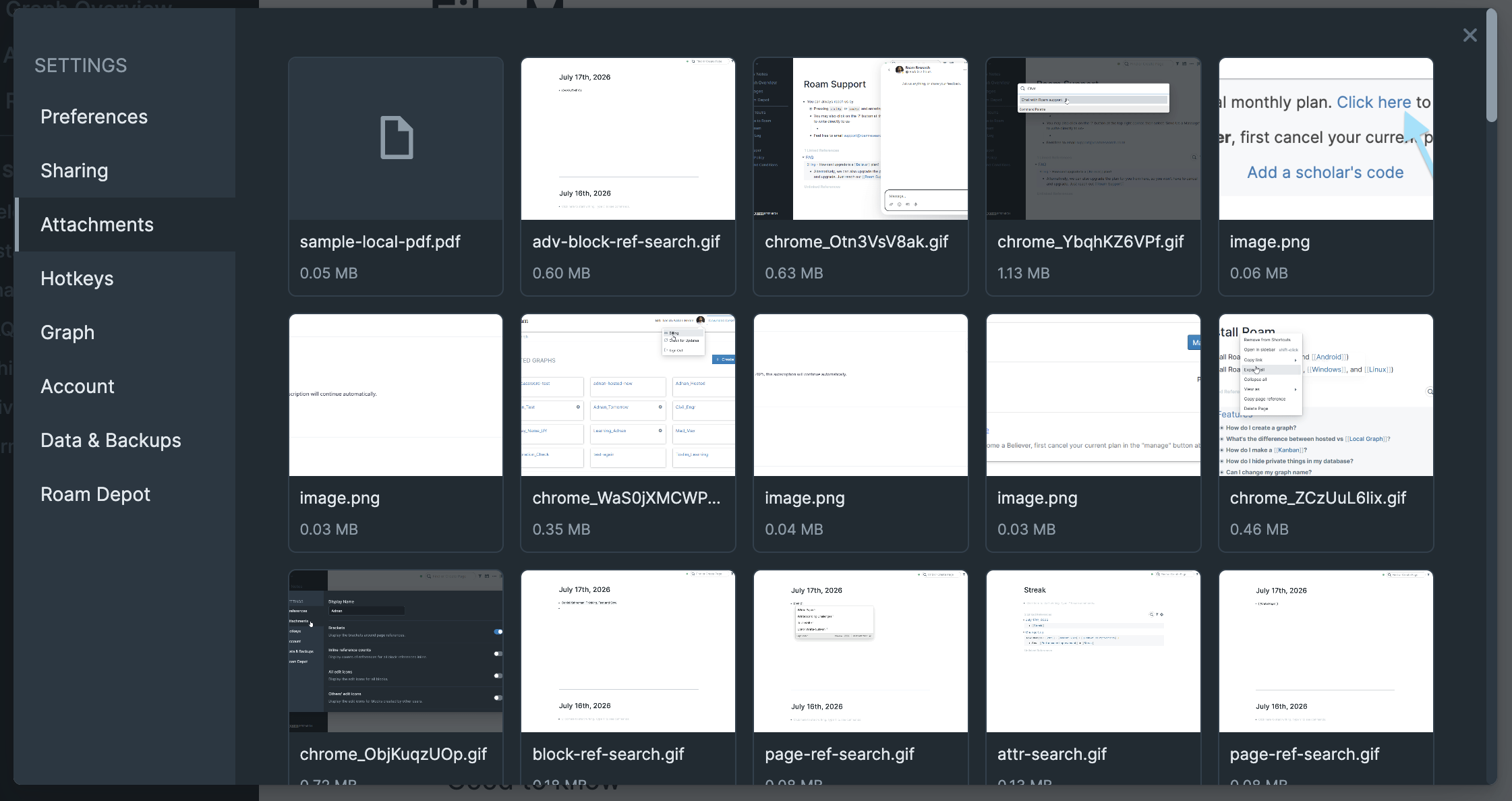
- Every image, audio file, PDF, and other file you upload is stored with your graph. The File Manager shows them all in one place.
- Open it from Settings → Attachments, or run File manager from the Command Palette.
- See Upload Files for how files get into your graph in the first place.
What you can do
- Browse every upload in a grid, newest first.
- Download a file. This works in encrypted graphs too.
- Delete a file permanently. Before you confirm, Roam shows you where the file is used: every block and PDF page that references it, or that it appears nowhere in your graph.
Moving attachments between graphs
- Export attachments saves your graph's files to a folder, along with a manifest file.
- Import attachments loads them into another graph from that folder, so when you restore a graph from a backup, its files can come along.
- This doubles as a bulk download of everything you've uploaded. It works on encrypted graphs too, decrypting each file as it saves.
- Both live in Settings → Data & Backups, and as Command Palette commands.
- Exporting to the same folder again skips files that are already there, so you won't get duplicates.
- Importing and exporting need the desktop app, Chrome, or Edge (they use folder access other browsers don't support).
Good to know
- Deleting a block doesn't delete the file that was uploaded in it. The upload stays in your graph's storage.
- There's no way to search for those leftover files yet. But when you delete a file, the reference check tells you whether anything still shows it before you confirm.
- Deleting is permanent. Any block that still embedded the file will no longer be able to show it.